
How to Import SRT Into CapCut: Desktop, Web and Mobile Differences
CapCut's current help documents SRT import on Desktop and Web, while direct subtitle-file import is not supported in its Mobile app. Choose the right import workflow for your SRT file, then check the captions against the matching video. Generating captions, importing SRT and exporting subtitles are separate capabilities.
In this guide
Prepare the SRT in AENural, then use the correct import control
- Open AENural’s Subtitle Editor, select Upload subtitle file and choose the SRT source. Review Subtitle text, Start and End, then select Download SRT if you make corrections.
- On CapCut Desktop, open the matching project and use Captions > Add Captions to import your reviewed subtitle file, following the current Desktop help.
- On CapCut Web, open Captions on the left, choose Upload caption file and select the SRT. The official Web instructions do not support a TXT import here.
- After import, inspect the individual timed blocks against your video. Do this before applying a template across the whole track.
A short compatibility fixture can narrow a rejection. Use the original two-cue sample in a disposable project: its first cue starts at 1.250 seconds and its last ends at 6.500. If it imports, return to the real file and inspect its syntax, encoding and time origin. The fixture is not meant to match your footage.
CapCut’s Mobile app currently lacks direct SRT/TXT import according to its own help. That limitation is different from whether it can generate captions from speech. Use a supported Desktop/Web workflow rather than searching the mobile text panel for a feature the documentation does not offer. Keep account and version differences recorded during the real import test. Recheck after a template changes the caption’s line wrapping or size.
Choose the supported import surface
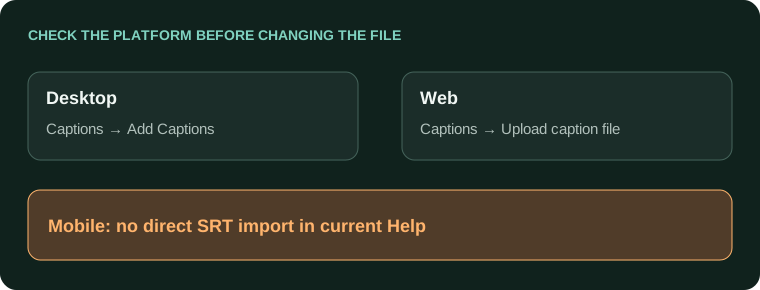
| Platform | Documented path |
|---|---|
| Desktop | Captions > Add Captions, then import the file. |
| Web | Captions, then the caption-file upload control for SRT. |
| Mobile | No direct SRT/TXT import in the current help article; consider a supported Desktop/Web project workflow. |
CapCut's subtitle-import help distinguishes these platforms and notes that Web accepts SRT rather than TXT. Check your current account and release because product options can change; do not assume an old mobile screenshot proves a desktop feature is missing.
Prepare the subtitle and video together
- Keep the original SRT and use the exact video edit it was timed against.
- Open the relevant CapCut project and use its documented caption-file import control.
- Confirm text appears as timed caption content, then compare an opening, middle and final line with the audio.
- Review text and timing before applying a visual template or track-wide style.
Check the actual file extension and plain-text syntax if import fails. A transcript saved with .srt at the end is not a timed subtitle file. Use the Subtitle Editor for cue-level corrections, or the invalid-SRT checklist.
Preserve editable project content
If you move a project between supported CapCut surfaces, confirm the captions remain editable after the transfer. Exporting a finished video and reimporting that video is a different operation: text already rendered into the picture is not restored as independent caption blocks.
Keep the SRT source outside the project as well. That gives you a reviewed timed-text master if a template, sync operation or future application update changes how project captions are represented.
Review the actual destination
- The complete subtitle text imported in the correct language.
- Caption timing matches the final video edit.
- Long lines and special characters remain readable.
- A separate export test confirms the file or video needed for delivery.
For generation from speech instead of an existing file, use the separate CapCut auto-caption workflow. Keep these entry points distinct so you do not replace already reviewed captions with a new automatic transcript unnecessarily.
CapCut subtitle imports across platforms
Why can't I import an SRT through CapCut's normal media Import button?
Use the subtitle-specific import controls for the platform you are on. CapCut's documented Desktop and Web workflows differ from ordinary video import. Confirm the file is an actual valid SRT before changing project settings.
Can I directly import my subtitle file in CapCut Mobile?
CapCut's import help says direct subtitle-file import is available on Desktop and Web, not Mobile. Check your installed version and use the supported surface rather than assuming the phone has the same controls.
Can subtitles imported on Desktop become editable in a mobile project?
CapCut documents importing on Desktop/Web and syncing the project for mobile editing. Check account, synchronization and project compatibility. Keep the SRT separately so a sync problem does not become loss of the caption source.
Why does CapCut Web reject my TXT even though Desktop accepts text imports?
Its documented Web subtitle import uses SRT. Desktop's text-handling options differ, and a plain reading transcript is not automatically timed captions. Prepare a valid SRT rather than renaming an untimed TXT.
Do imported captions need to be in one of CapCut's speech-recognition languages?
Existing timed text does not need a new recognition pass. Still verify script, font and encoding support in the destination. Importing a translated SRT is separate from asking the app to recognize that spoken language.
Why do my imported subtitles show broken accents or non-Latin letters?
Check the source encoding and destination font support. Use a correctly decoded UTF-8 copy, preserve the original and test a known name. Do not remove the language's characters just to make an import appear successful.
Can I restyle imported SRT cues without typing them all again?
CapCut documents editable caption blocks after a supported import. Test font, position and any apply-to-all behavior on a few cues. Check the actual export, since a good preview does not verify the final result.
Why are imported captions out of sync even though their text is right?
Confirm that the SRT matches the final video and starts from the same time origin. A different intro, crop-only export or edited clip can create different issues. Measure the mismatch before shifting all cues.
Should I regenerate captions if the SRT is already reviewed?
Use the reviewed import when the supported workflow meets your needs. Regeneration can introduce new errors. Test the required export early, because imported and automatically recognized text may have different downstream capabilities.
How can I check the file before blaming CapCut's importer?
Open it in Subtitle Editor, check wording and Start/End values, and try a small valid sample. Separate file syntax, platform limitations and timeline placement instead of repeatedly converting the same input.