
CapCut Auto Captions: Generate a Draft, Then Review the Parts That Matter
Generate CapCut auto captions from the intended audio and language, then review the words and timed segments before styling. Check feature access and export conditions on your current platform/account first. A video caption generator produces a draft. Check AI captions for names, missed words and segmentation; successful generation does not establish that the final download meets your needs.
In this guide
Use a short meaning-and-export test
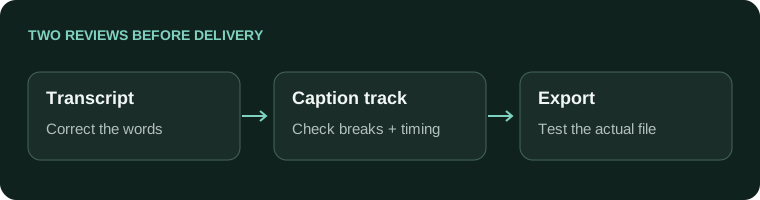
Before styling a full episode, choose a short section containing a speaker name, a number and one pause. These features expose useful review questions without turning a single clip into an accuracy benchmark. Save an editable project copy so a trial does not overwrite your only corrected track.
- Generate the sample through CapCut’s Auto Captions workflow for your platform. Select the actual spoken language and source audio where those controls are offered.
- Read the resulting blocks while listening to the same passage. Correct the name and number from the recording, not from a guess about the intended topic. Check that text does not continue over a cut into another speaker.
- Open the export controls and test the deliverable you actually need. For a subtitle file, inspect Caption Export and the SRT option where available; a video download is a separate test.
- If an SRT downloads, open it in AENural’s Subtitle Editor using Upload subtitle file. Compare a deliberately corrected line and its Start/End fields with the CapCut timeline.
When AENural is used for a later correction, save Download SRT and reconcile the revised text in the project before the final render. The applications do not share an automatic edit link.
If your account blocks the required export, record that restriction early. A free-looking template or a successful generation preview does not establish that the final file is included. Choose a supported workflow before spending time animating every line.
Select the intended speech source
Open the project containing the approved edit, then check which audio contains the conversation. Music, commentary and a muted microphone track can change what is available for recognition. Use a short representative section for the first test.
CapCut's recognise-subtitles help documents the Auto Captions controls on Web, Desktop and Mobile. It describes selecting the audio source/language where offered and generating captions. The layout and available options vary by platform.
Generate before applying a full design
- Open Auto Captions from the relevant Captions/Text area in your installed version.
- Select the spoken language and intended audio source where available.
- Generate the captions and inspect the resulting timed blocks.
- Correct meaning-changing words and check segmentation before applying a template to everything.
Do not assume a vendor's general 'free' landing-page wording applies to every account, region and export. Check the actual access prompt and output conditions before spending time designing a full episode. Avoid bypasses or unofficial project extractors as a substitute for a supported workflow.
Review meaning before visual polish
| Pass | Look for |
|---|---|
| Meaning | Names, figures, dates, negations and technical vocabulary. |
| Speakers | Incorrect attribution and overlapping speech. |
| Timing | Words arriving too early, leaving too soon or crossing a cut. |
| Layout | Awkward breaks, unreadable density and hidden picture information. |
An attractive template can make a wrong transcript look finished. Keep an unstyled or simply styled version long enough to focus on the content. Replay uncertain phrases; do not correct them only by guessing what would make grammatical sense.
Draft phrase: We do need approval.
Audio check: verify whether the speaker said do or don't.
Do not resolve this from context alone.
Test the actual export early
- The required video or subtitle file can be downloaded under the displayed conditions.
- Words and timing in the export match the reviewed timeline.
- Long captions remain readable at the final aspect ratio.
- The editable project and reviewed text source are retained.
CapCut's export troubleshooting help separates caption export from video export and identifies caption-source restrictions. For an existing SRT, use the import workflow instead of generating another transcript of already reviewed content.
CapCut recognition, language and missing text
Why does CapCut caption the start and end but skip the middle?
Replay the affected audio and check the chosen speech source and language. Test a short copy of the missing section, ideally without unnecessary competing tracks. Do not assume clearly audible speech guarantees a complete automatic result.
The words are in the caption editor but cut off on screen. What should I check?
Inspect the template, wrapping, text box and position with a long cue. Temporarily test a simple style to separate recognition from layout. Regenerating correct words will not necessarily fix text hidden by the design.
Why are Arabic captions in the wrong direction or language?
Check the selected recognition language separately from the app's interface language, then inspect script direction and font in the result. Do not rely on a historical language-switching workaround as a guaranteed fix for today's version.
Can I fix one wrong name without generating the full clip again?
Use the caption text-editing controls and check the saved result. Preserve your reviewed project before another generation. A second automatic pass can replace useful corrections with a new set of errors.
Why do song lyrics come out as only a few words?
Sung vocals mixed with music are a different recognition challenge from clear speech. Review against the authorized lyric source and audio. Do not treat a speech-caption feature as a guaranteed lyric transcription service.
Should I remove background music before trying captions again?
Test the speech source separately when you can do so without changing the intended timing. Keep the full mix and compare results. Treat this as a diagnostic trial, not a promise that every skipped passage is caused by music.
Why did the caption text change to all caps after I applied a style?
Inspect whether the design applies a casing transformation rather than changing the underlying recognized text. Correct punctuation and sentence structure deliberately; a case preset alone does not create a proofread transcript.
Can I make a missing spoken sentence into a new caption?
Use the app's supported editing workflow or repair a usable subtitle export in Subtitle Editor. Enter only verified words and measured times. Do not stretch neighboring text to hide a missing passage.
Will buying a subscription guarantee that every caption appears correctly?
No. Feature access and output quality are separate questions. Check the exact current plan terms, then test recognition, editing and the required download with your representative clip before spending money or committing the full project.
What should I review before choosing the animation template?
Check names, numbers, missing words, speaker changes and cue timing first. Then test the style on short and long captions. Finish with the actual export so clipping or timing problems are not hidden by the preview.