
Premiere Pro Transcript to Captions: Review the Words Before Creating the Track
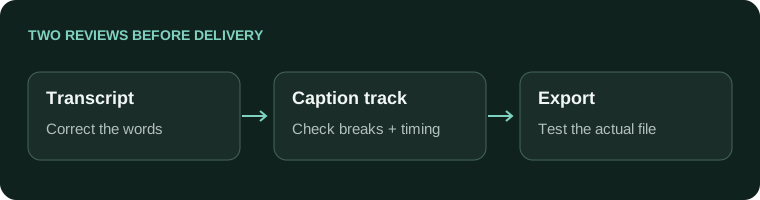
Premiere Pro auto captions start with a transcript. This video transcription stage recognizes speech; it does not finish the subtitle layout. Review its words, create the captions, then check the resulting track. These are separate editing stages: fixing a transcript does not replace checking caption breaks and timing. Work against the final sequence before choosing a subtitle file or video export.
In this guide
Use the caption dialog for one reviewed passage
In Adobe’s current desktop instructions, choose Window > Workspaces > Captions and Graphics, then Captions > Create captions from transcript. The dialog includes caption preset, format, style, length, duration and gap choices. Use those controls to make a starting track, then review the actual sentences.
For an illustrative interview, a recognized phrase might omit the word not. Correct that meaning-changing error before creating captions. After generation, inspect the matching caption block as well: the review target is now the timed track, not only the transcript panel.
- Choose a short sequence passage with a name, a pause and a longer sentence. Preserve the sequence before generating a replacement caption track.
- Create the captions using the required format and your delivery settings. Check whether the long sentence became sensible phrases rather than relying on the dialog’s numbers alone.
- Export a small SRT sidecar and open it in AENural’s Subtitle Editor using Upload subtitle file. Compare the words and Start/End fields against the same sequence passage.
If you correct that exported SRT in AENural, save it with Download SRT and identify the revision clearly. The downloaded file does not automatically update your Premiere project. Reconcile any correction in the project master before producing the final picture and caption deliverables.
Choose the correct transcript source
Confirm the active sequence, intended audio and spoken language. A transcript of source clips and a transcript representing the edited sequence are not interchangeable review targets. Keep a duplicate sequence before making structural changes.
Adobe's Speech to Text guide documents Window > Text and the static-transcript workflow. These instructions follow current desktop help checked on 4 November 2026; use the help matching your installed version if panel labels differ.
- Choose final sequence audio
- Correct transcript words
- Create caption track
- Review timed segments
Create captions from the reviewed transcript
- Open the relevant sequence and Text panel. Confirm that the transcript represents the audio you intend to caption.
- Correct names, figures and meaning-changing recognition errors before creating captions.
- Use the caption creation command. Adobe's current guide describes Captions > Create captions from transcript.
- Choose the required preset/format and line, length, duration and gap settings, then create the captions.
- Inspect the resulting track in the timeline and replay transitions against the audio.
Adobe's caption creation guide documents these layout settings. They generate a starting segmentation; they do not guarantee ideal line breaks or enough reading time for every passage.
Review words and timing separately
| Pass | Look for |
|---|---|
| Transcript review | Wrong names, numbers, missing negations and incorrect speaker attribution. |
| Caption-track review | Awkward breaks, dense blocks, overlaps and text that enters or leaves at the wrong moment. |
Do not assume a later transcript correction automatically updates every already-created caption in every workflow. Check the caption track itself after changes. If regenerating is necessary, preserve any intentional timing or styling work first so it is not silently overwritten.
Choose the delivery after review
A reading transcript, sidecar SRT and video with permanent captions are different deliverables. Keep the sequence and editable caption track, then export the version the receiver requests. The Premiere SRT export guide covers the caption-file decision separately.
- The correct sequence and language were used.
- Caption words match the reviewed transcript and audio.
- Several dense and fast passages remain readable.
- The actual exported file is tested independently.
If a supplied SRT only needs text or timing repairs, the Subtitle Editor is a more relevant shortcut than retranscribing the entire video. Keep recognition, caption creation and delivery as explicit stages.
Premiere transcript-to-caption problems
The transcript exists, so why is Create Captions greyed out?
Confirm that the active view is the intended sequence, not only a source clip transcript. Preserve the project before troubleshooting existing tracks. Check Adobe's current workflow for your installed release rather than assuming a language is unsupported.
Why can I read my voiceover transcript but not turn it into a caption track?
Check whether you are viewing the voiceover source or the sequence that contains it. Captions need to be created for the intended sequence. Verify the selected audio and active panel before regenerating the transcript.
Should I fix recognition errors before or after creating captions?
Correct the source words first where practical, then inspect the generated caption track separately. Names, numbers and missing negations can survive into captions if you approve only the transcript's general appearance.
I created captions once. How do I create another reviewed version?
Preserve the existing caption work, activate the intended sequence transcript and use the current caption-creation command. Compare the new track with intentional timing and styling edits before replacing anything. Menu locations vary across versions.
Can I export transcript TXT and rename it to SRT when caption creation fails?
No. Transcript text is not automatically a properly segmented subtitle file. Use a supported caption workflow or prepare measured cues separately. Renaming can hide the missing timing structure without solving the actual problem.
Why did my generated captions include the wrong audio?
Confirm the intended sequence, audio source and spoken language before generation. Listen to the exact material represented by the transcript. A source-clip transcript and the final edited sequence can contain different dialogue or ordering.
Will correcting the transcript automatically update all existing captions?
Do not assume so. Check the timed caption text after the correction. If you regenerate, preserve intentional edits and reconcile the versions. A correct transcript panel is not proof that the exported caption track contains the correction.
Why are the captions correct at first but wrong after I edit the sequence?
Cuts, reordered material and speed changes can invalidate earlier timing. Compare the track against the final intended edit. Correct affected sections or regenerate deliberately, preserving reviewed wording rather than blindly overwriting it.
Can I use AENural to check the SRT before returning it to Premiere?
Yes. Open it in Subtitle Editor, inspect a corrected phrase and its Start/End values, then download the reviewed file. Reconcile any changes in Premiere too; the separate file does not update the project automatically.
Does a successful automatic caption pass mean the timing is ready for export?
No. Review cue boundaries, reading load and speaker transitions on the final sequence. A correct sentence can still be broken badly or shown too briefly. Check the saved sidecar or video after export as well.