
DaVinci Resolve SRT Import: Check the Timeline Before Styling
To import an existing SRT file, use DaVinci Resolve's subtitle import workflow and inspect the subtitle track against the final timeline. You do not need a new transcription pass just to import reviewed timed text. Check the timeline origin, matching edit and language before adjusting its appearance.
In this guide
Check the file before blaming the Resolve timeline
- Open AENural’s Subtitle Editor, select Upload subtitle file and load the exact SRT you intend to import. Check its first line, Start and End against the source recording.
- Correct any verified text mistake in Subtitle text, then use Download SRT to create a reviewed working copy. Preserve the supplied file separately.
- Import that copy into the intended Resolve timeline through the subtitle workflow. Compare the first spoken line before applying track styling, then check middle and final passages.
If you need to isolate a file problem, download the two-cue SRT sample and import it in a disposable timeline. Its first cue begins at 1.250 seconds; the last ends at 6.500. It contains invented text, so it is an import fixture rather than captions matching your video.
If the sample loads but your file does not, inspect the file’s structure or supported encoding. If both load but your dialogue is offset, compare the timeline placement and source cut instead. Do not change the source timestamps and move the imported item by the same offset; that applies the correction twice. Record which adjustment you chose so later imports use the same origin.
Start from the reviewed subtitle file
Keep the original SRT and identify the video version it belongs to. A file timed against a separately exported clip can require a different placement from a file timed against the complete programme. Confirm that distinction before changing every cue.
Blackmagic's current Edit-page overview documents subtitle import, timeline editing and track styles. Automatic speech recognition is a separate feature; do not confuse importing a file with generating its words from audio.
Import, place and compare
- Open the intended Resolve project and timeline, preserving a backup before broad changes.
- Use the subtitle import command for the SRT and place the resulting subtitle media on the intended timeline.
- Select the subtitle track and inspect the first identifiable line against speech.
- Compare a middle and final line before deciding whether a placement shift or section-specific correction is needed.
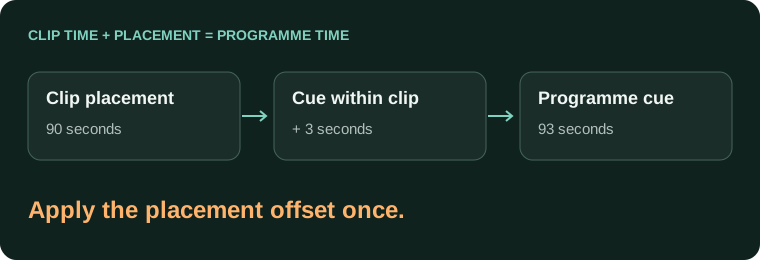
A clip-relative cue starts 3 seconds after the clip begins.
The clip is placed 90 seconds into the programme.
Expected programme position for the cue: 93 seconds.
Do not apply an offset twice, once to the file and again when placing it. If the beginning matches but a later section does not, compare the edit rather than repeatedly dragging the whole track.
Review appearance after timing is stable
Use the Inspector's subtitle/track controls for the selected subtitle content in your installed version. Check font availability, line wrapping and position on representative long cues. A plain SRT import should not be expected to reproduce another application's animation or full design.
| Check | Why it matters |
|---|---|
| Text versus audio | The file may be valid but belong to another cut. |
| Timeline origin | A clip-relative file and a full-programme file have different placement needs. |
| Track/language | Multiple tracks can make the wrong captions look like an import failure. |
| Long lines | A replacement font or aspect ratio can change wrapping. |
Verify the eventual export separately
Seeing captions in the timeline is not proof that the delivery preset will include them in the desired way. Decide whether the receiver needs a separate subtitle file or permanent text in the picture, then test an exported sample.
- The imported language and revision are correct.
- Speech checks align at the beginning, middle and end.
- The intended track is selected.
- The final video and/or sidecar are opened independently.
For file repairs before import, use the Subtitle Editor. For broader timing patterns, use the existing synchronization guide. Native app menu details should be checked against the installed Resolve manual before a production handoff.
Resolve subtitle import and timeline alignment
Why does my imported SRT appear at the playhead instead of the expected time?
Inspect the import/placement workflow and the timeline's start timecode. Compare the first cue with its real position in the matching video. Do not assume a file timed from zero has the same origin as your sequence.
Insert subtitles using timecode appears to do nothing. What should I inspect?
Check that the cue times fall within the intended timeline range and that the file has valid structure. Test a short known-good sample and confirm your Resolve version. Preserve the project before changing its time origin.
Am I importing a subtitle track or replacing source transcription?
Those are different targets. Use the subtitle workflow when you need timed text on the timeline. A transcript-window or source-clip operation may affect a different object, so confirm what changed before continuing.
Do I need Studio's speech recognition to import reviewed SRT captions?
An existing timed subtitle file is a different input from generating captions from speech. Follow the supported subtitle import workflow for your installed version. Do not buy a recognition feature simply to repeat an already completed transcription.
The subtitle track exists but I cannot see any words. Is import broken?
Check track display, cue timing, visibility and text position before rebuilding it. Seek inside a known cue and compare with a simple sample. A hidden or out-of-range caption is different from an empty or rejected file.
Why does an SRT timed for a short clip not align in my full programme?
The short clip and programme may use different time origins. Account for where that clip begins in the sequence, and avoid applying the offset twice. Check another recognizable line before approving the placement.
Can a director's trimmed SRT automatically make all my video edit decisions?
Do not assume a subtitle import is a full media-edit interchange. It contains cue text and timing, not every relationship needed to reconstruct a project. Verify any paper-edit workflow separately on a disposable sequence.
Why did translated SRT text change the wrong transcript in my project?
Confirm whether the command targeted source transcription, timeline transcription or a subtitle track. Keep language-specific project copies and check a distinctive translated phrase. Do not overwrite the only source-language master while investigating.
What can I repair in AENural before the Resolve import?
Use Subtitle Editor to inspect supported text, Start/End values and issues. Save a corrected SRT with a new revision name, then verify its opening cue and known correction in Resolve.
Should I change every cue because Resolve's timeline begins at one hour?
First establish how the intended import/export workflow treats that origin. Measure the difference against the recording, preserve the source and test one copy. A blanket shift without that check can add a second offset.