
How to Fix Subtitles Out of Sync: Delay, Drift and Cuts
To fix subtitles that are out of sync, compare a clear line near the beginning, middle and end of your video. Shift every cue if the error stays constant. Use two reference points if it grows steadily. If timing suddenly jumps after an edit, correct that section instead of stretching the whole file.
In this guide
Identify the timing pattern before changing anything
Keep an untouched copy of your subtitle file and use the exact video export you plan to deliver. A transcript timed against an earlier edit may no longer match the finished cut. You do not need to rewrite correct dialogue to repair its timestamps.
Choose three short lines with an unmistakable beginning, preferably after a pause. Note the subtitle start time and when the corresponding speech actually starts. Avoid overlapping voices or a repeated phrase that could lead you to measure the wrong line.
A mixed pattern can contain both an initial delay and drift. Two measurements describe a straight-line correction; the middle checkpoint tests whether that model is appropriate. Matching two endpoints alone does not prove that everything between them is correct.
Fix subtitles that are always early or late
A constant offset moves every cue by the same amount. Both the start and end of each caption move together, preserving its duration. The Aegisub shift-times documentation describes the same basic operation, including applying a shift to selected lines.
speech start − subtitle start = shiftFor an illustrative example, suppose speech begins at 12.000 seconds and its subtitle begins at 10.500 seconds. The correction is +1.500 seconds: move the subtitle later. If the subtitle begins at 13.500 seconds instead, move it 1.500 seconds earlier.
- Open AENural's SRT Timing Adjuster and choose your SRT file.
- Select Later when captions appear before the speech, or Earlier when they appear after it.
- Enter the amount in Seconds. For the first example, choose Later and enter 1.5.
- Inspect the timing preview, download the adjusted SRT, and test it with your video.
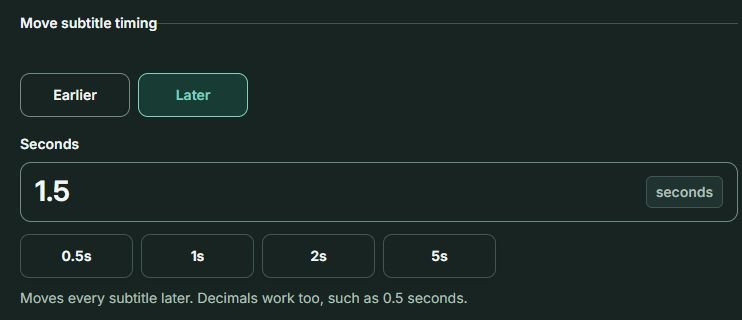
1. Choose Later for early captions. 2. Enter 1.5 in Seconds to move every cue 1.5 seconds later. Choose Earlier for the opposite correction.
Open the full-size screenshotCheck direction labels rather than assuming every application uses the same sign convention. For VTT, AENural's Subtitle Sync Fixer accepts VTT as well as SRT; setting two reference points to the same offset produces a constant shift.
Fix captions that gradually drift out of sync
If one shift fixes the opening but the ending remains wrong, measure two widely separated cues. A two-point correction changes the timing scale and offset together. It is useful when the error changes approximately steadily, but it cannot reliably repair missing scenes or irregularly mistimed lines.
In AENural's Subtitle Sync Fixer, upload the subtitle file, then choose an Early reference and a Late reference. For each, enter the existing Subtitle time and when it Should appear at in your video. Select Fix sync, review the correction, and download the corrected file.
The screenshots below use an illustrative three-cue SRT. Enter the same times to follow the worked example, or replace them with measurements from your own video. On a narrow screen, scroll the screenshots sideways to read the controls.
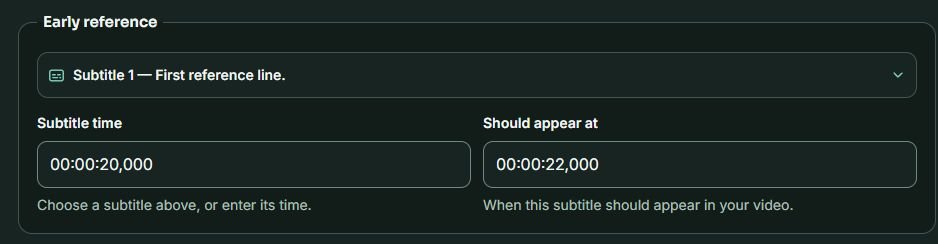
1. Keep the selected cue's original Subtitle time at 00:00:20,000. 2. Enter 00:00:22,000 under Should appear at. This line needs to move two seconds later.
Open the full-size screenshot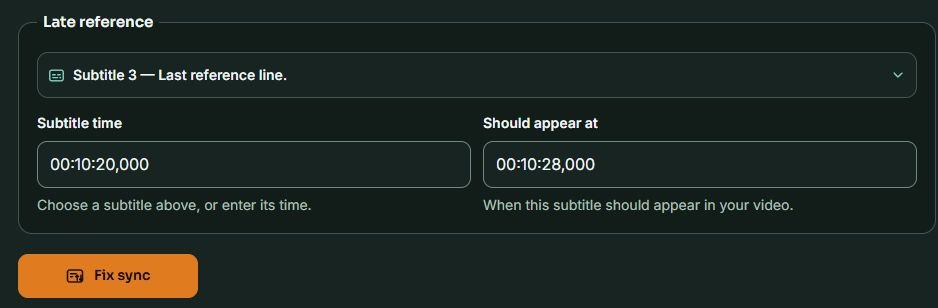
3. Use the later cue's original time, 00:10:20,000. 4. Set its correct video time to 00:10:28,000. 5. Select Fix sync. This reference needs an eight-second correction, so one fixed shift cannot match both lines.
Open the full-size screenshot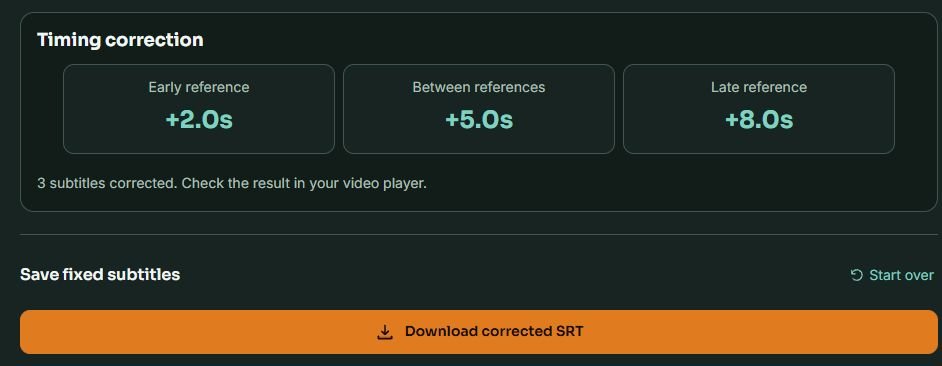
6. Review the early, middle and late correction amounts. 7. Download corrected SRT. The summary confirms the applied calculation; replay the file with your video to judge actual synchronization.
Open the full-size screenshot| Checkpoint | Subtitle starts | Speech starts | Required shift |
|---|---|---|---|
| Early reference | 00:00:20,000 | 00:00:22,000 | +2 seconds |
| Middle check | 00:05:20,000 | 00:05:25,000 | +5 seconds |
| Late reference | 00:10:20,000 | 00:10:28,000 | +8 seconds |
The subtitle reference interval is 600 seconds; the corresponding video interval is 606 seconds. Their ratio is 1.01. In this example, the mapping is new time = old time × 1.01 + 1.8 seconds. It maps 20 to 22, 320 to 325, and 620 to 628 seconds. A constant +2-second shift would fix only the first reference.
You do not need to calculate the ratio to enter two reference points. The example explains why choosing the correct spoken moments matters. If the middle line fails after correction, recheck your measurements and whether the video contains an edit. For a separate editor with multiple sync points, see Subtitle Edit's Point Sync documentation.
Fix a sudden timing jump after a cut
When subtitles match until one scene and then become consistently early or late, inspect the video around that transition. An inserted intro, removed passage or different cut can change the required offset for only part of the file. Do not stretch correct earlier captions to compensate.
Find the first incorrect cue and compare it with the last correct one. If the dialogue still matches, shift only the affected range in an editor that supports selection-based timing changes. AENural's Subtitle Editor lets you inspect and correct individual cue times. For a large selected range, Aegisub's documented shift operation is another option.
If dialogue is missing, reordered or belongs to a different version, obtain subtitles for the matching cut or rebuild that section against your final video. Subtitle Edit's synchronization help specifically discusses added or removed scenes and adjusting smaller parts. No single global offset can recreate missing dialogue.
Avoid fixes that change the wrong thing
Do not guess a frame-rate conversion
SRT stores clock timestamps, rather than a frame number for each cue. The Library of Congress SRT format description documents its start/end time structure. A different frame-rate label alone does not tell you how much to retime subtitles. Measure the actual dialogue positions; investigate speed changes only when the timing evidence supports them.
Do not convert formats to repair timing
Changing SRT to VTT changes the file representation, not the relationship between dialogue and timestamps. Repair sync first, then use the delivery format your player or platform requires. Keep the corrected source file so you can compare later exports.
Do not edit the wrong caption track
Check whether you are viewing the corrected external subtitle file, an embedded track, or captions already burned into the picture. Editing an SRT cannot change text that is part of the video image. Reload your chosen track after saving, and disable any old player delay before judging the corrected file.
Check the result before sharing
- Replay the opening, a middle passage and the ending with the corrected subtitle file.
- Check both caption starts and ends, including short replies and lines after silence.
- Inspect cues around cuts, timestamps near zero, and any timing warnings.
- Confirm the dialogue, punctuation and intended captions remain present.
- Test the actual delivery player or platform; keep the original and corrected files separately.
If a problem appears only after seeking or in one player, test the same video and subtitle in another player before repeatedly changing the file. That comparison helps distinguish a playback issue from a repeatable timestamp error; it does not establish the cause by itself.
Subtitle sync questions
Why do I keep changing the subtitle delay?
If the required delay grows as the video continues, a fixed shift is not enough. Measure separated cues and test a two-point correction. If the delay jumps after one scene, inspect that section instead. The pattern identifies an appropriate next step, not a guaranteed cause.
Can I fix timing without transcribing again?
Yes, when the dialogue text already matches your video. A shift or two-point correction changes timestamps while retaining the words. Missing dialogue, rearranged scenes or inaccurate text still need editing. Keep a backup and check the corrected file against the final video.
Why does the corrected file look wrong in my player?
Check that the player loaded the new file and has no extra delay applied. Then compare the same cue in another player. An old track, a playback setting or an incorrect timing correction can each produce a mismatch; changing the timestamps again before checking these can compound the error.