
How to Fix Garbled Subtitle Characters Without Losing Text
If accents or non-Latin letters in an SRT file look wrong, reopen an untouched copy with the correct text encoding before saving it as UTF-8. Changing the filename will not repair characters. If letters have already been replaced and saved, return to an earlier source rather than repeatedly converting the damaged copy.
In this guide
Identify what changed
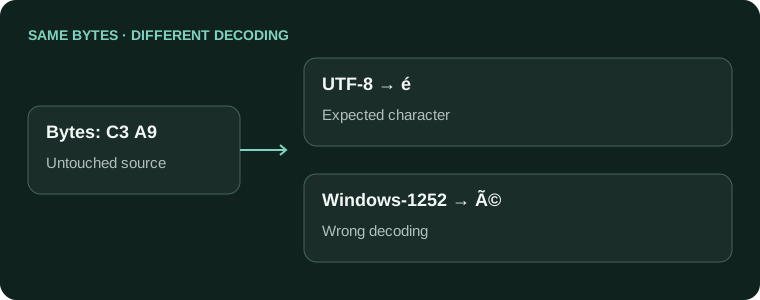
Compare a known name or sentence with the original script. Separate text damage from display problems: letters that are wrong in a text editor suggest decoding or earlier corruption; correct letters that appear as boxes only in the player suggest a font or rendering issue.
| What you see | What to investigate |
|---|---|
| Accents become sequences such as é | The original bytes may have been interpreted using the wrong encoding. |
| A replacement symbol such as � | A decoding step may have rejected bytes; find the untouched original. |
| Correct text in the editor, boxes in video | Check whether the selected font and player can display that script. |
These are diagnostic clues, not proof of one specific encoding. Do not apply a global search-and-replace to every unusual symbol: some may be intentional punctuation or real characters in another language.
Recover first, then save a new copy
- Duplicate the original subtitle file. Leave one copy untouched, including its original bytes.
- Open the working copy in an editor that lets you choose or reopen with a text encoding. Try the encoding supplied by the source, rather than guessing from the filename.
- Inspect several passages, including names and characters unique to the language. A readable opening alone is not enough.
- Save the recovered text under a new name as UTF-8. Reopen that new file and compare it with the recovered version.
Aegisub exposes export encoding in its export dialog documentation. The distinction matters: selecting an encoding for output is useful only after the text has been interpreted correctly. Saving already damaged characters as UTF-8 preserves the damage.
Check text and playback separately
Use a test sentence containing the actual characters you need, for example an accented name and punctuation from the target language. Keep it in a disposable test file, not in the delivered subtitles. Compare the editor, exported file and receiving player.
- Confirm cue numbers, timestamps and blank separators survived the encoding repair.
- Check that the destination accepts your subtitle format. Encoding and format are different requirements.
- Test the chosen font on the same player used for delivery.
- Ask a reader of the language to inspect text you cannot confidently evaluate.
MDN's TextDecoder reference explains how text bytes are interpreted through a selected encoding. The practical lesson is to preserve the original bytes until recovery is complete. Once the text is readable, use the Subtitle Editor for ordinary wording and timing corrections; do not expect it to reconstruct letters already lost.
Inspect the recovered copy in AENural
Once your text is readable, open the Subtitle Editor and select Upload subtitle file. Inspect Subtitle text for a cue containing the repaired characters. Download a fresh SRT copy with Download SRT, then reopen that export to confirm the letters survived.
AENural does not offer a menu for trying legacy encodings or reconstructing missing letters. If it reports an unsupported encoding, recover the original in a suitable text editor first. Repeatedly uploading a damaged file will not restore information that has already been overwritten.
Keep the repaired master
Record the source filename, recovered encoding and final export format in your handoff notes. Keep the original and repaired files in separate folders. If a collaborator later reports broken text, compare their received file with your reopened master before changing every subtitle again.
For future exports, request UTF-8 where the receiver supports it and verify a short multilingual sample early. This prevents an encoding mismatch from being discovered only after a long translation or caption review.
Broken accents and character questions
My Spanish subtitles show diamonds instead of accents. Is the translation broken?
Not necessarily. Compare the untouched file in a text editor with playback. Wrong characters in the editor suggest decoding or saved text damage; readable text that fails only in playback points toward the player's settings or fonts.
Are Japanese characters or kanji unsupported in SRT?
SRT can contain Japanese text. Preserve your readable source and save a correctly decoded copy as UTF-8. Do not delete kanji to make the file pass; that removes the words readers need.
Why does the same subtitle file work in one app and fail in another?
Players can interpret the same bytes differently or use different fonts. Check subtitle encoding and font support in the failing app. Test an unchanged copy before deciding the source text itself is corrupt.
Can switching to UTF-8 recover letters already saved as question marks?
Only if the original bytes still contain the letters. Literal replacement marks in a saved file may mean information was lost. Return to an earlier readable source instead of repeatedly converting the damaged copy.
Should I keep trying different encodings and saving each time?
Try interpretations on a copy without overwriting the original. Stop when known names and sentences read correctly, then save one UTF-8 version. Repeatedly saving wrongly decoded text can make recovery harder.
Do I need to remove music symbols or inverted question marks?
No. Those can be intentional language or caption characters. Compare with the script and recording. Repair decoding problems rather than stripping punctuation or useful sound information merely because it is unfamiliar.
Why are characters correct in the text file but displayed as empty boxes?
Check that the receiving player has a font covering that script. Test another suitable font or player. A display problem is different from text that was already replaced before the file reached the player.
Does adding a UTF-8 BOM solve every subtitle encoding problem?
No. Some applications handle the marker differently, and it cannot restore missing text. First establish the original encoding and the destination's requirements. Test the new copy there before replacing your working subtitle master.
Will correcting the encoding change my subtitle timings?
A proper text re-encoding should preserve cue numbers, times and wording. Compare those fields afterward. If you also delete or rearrange lines, you are making a separate structural edit that needs its own review.
What should I check after opening the recovered file in AENural?
Use Subtitle Editor to inspect known accented names, the first and last cues, and any reported issues. Download a new copy, then test that exact file with the matching video.