
DaVinci Resolve Subtitle Export: Sidecar File or Burned-In Video?
Before exporting subtitles from DaVinci Resolve, choose whether you need a separate SRT file or text permanently rendered into the video. Confirm the selected track and export settings, then open the outputs independently. Caption visibility in the editing timeline is not enough to establish what the rendered file contains.
In this guide
Inspect the real sidecar with AENural
Use a short delivery test to answer two separate questions: did Resolve export the intended subtitle file, and does that file still match the final video? A sidecar can be valid even while the picture remains correctly free of permanent captions.
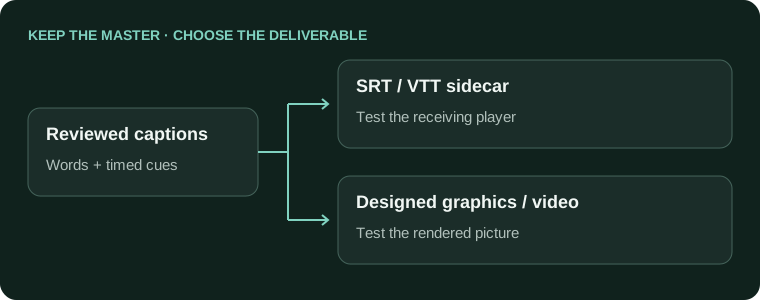
- In Resolve, select the reviewed timeline and intended subtitle track. Choose the separate-file export supported by your installed release when the receiver requests an SRT. Keep a clean master before producing a burned-in version.
- Open AENural’s Subtitle Editor, select Upload subtitle file and choose that newly exported SRT. Compare the opening and closing words with the intended track.
- Inspect Start and End at a known transition and a later line. Check those moments against the delivered video, including any in/out range that changed its time origin.
- For a WebVTT receiver, convert the reviewed SRT through SRT to VTT, choose Download VTT, then test the actual receiving player.
For example, an exported section may begin halfway through the full programme. Establish whether its subtitle times refer to that standalone section or the complete timeline. The correct choice depends on the matching media, not which filename was easiest to produce.
If an individual correction is made in AENural, select Download SRT and reconcile that change in the project before the next export. An edited sidecar does not automatically update Resolve’s subtitle track.
Choose the output for the receiver
| Intention | Verify |
|---|---|
| Clean video with selectable captions | The platform/player accepts the sidecar and the language label is correct. |
| Video with permanent caption appearance | The rendered picture contains the text at the correct size and position. |
| Both deliverables | The clean and captioned versions are named clearly and tested separately. |
Blackmagic's Edit-page documentation confirms subtitle rendering and separate TTML, SRT or VTT export options. Supported delivery features and labels should be checked in the manual for your installed release. Do not infer embedded-track support for every container from the existence of a sidecar export.
Check the delivery settings before queuing
- Open the final timeline and inspect the intended subtitle track, language and last revision.
- In the delivery workflow, review subtitle export settings explicitly rather than relying on a saved video preset.
- Choose the supported separate-file or rendered-caption option required by the brief.
- Export a short representative section and inspect it before rendering the full programme.
A representative section should contain a longer caption, a speaker transition and a shot where text could cover important information. Keep the clean video master so a later caption correction does not require reconstructing the picture edit.
Diagnose missing captions by the expected output
- A separate SRT was exported
- Load it with the matching videoThe video image may correctly remain clean; inspect the player track selection.
- Permanent captions were requested
- Inspect the render settingsCheck whether caption rendering was actually enabled for the selected track.
- The wrong language appears
- Check the source trackInspect both the chosen track and the contents of the saved file.
Do not burn captions simply to make a sidecar appear inside a player that has not loaded it. First establish whether the expected deliverable is a selectable track or text in the pixels.
Verify text, timing and picture independently
- The sidecar has the intended language and complete cue range.
- The clean output contains no unintended permanent captions.
- The captioned output shows readable text without clipping.
- Both outputs use the same approved video edit and timing origin.
Use SRT to VTT or VTT to SRT only when the receiver needs a different timed-text format. Conversion does not repair a render preset or recover styling already removed by a plain export.
Resolve captions missing from the final output
Why are captions visible in Resolve but missing from my rendered video?
Check the subtitle options in Deliver for that render job. Timeline visibility does not establish whether captions will be burned, exported separately or omitted. Test a short output and reopen it independently before rendering the complete programme.
Should I choose a sidecar or Burn into video?
Use a sidecar when the receiver needs selectable or editable captions in a supported workflow. Burn text into the picture when that fixed presentation is required. Keep a clean master and the reviewed subtitle file either way.
My SRT loads in VLC, but no captions appear during the short film. Why?
Open the SRT and compare its first cue with the video's elapsed time. A one-hour timeline offset can place captions outside a short export. Verify the actual mismatch before changing the source or render settings.
Why do I see captions in the exported picture and a second set from SRT?
The player may be loading the sidecar over already burned text. Disable the selectable track to identify each version. Choose one intended presentation for playback while preserving separate masters for future delivery needs.
Does exporting an SRT preserve the exact Resolve typography?
Do not expect basic SRT to reproduce every font, position, background or effect. Keep the styling project and an approved reference when appearance matters. Test the caption file in the receiver that will actually render it.
Can I trust a saved render preset to include subtitles every time?
Check the actual job's subtitle settings and intended track before starting. Presets and project changes can leave assumptions unchecked. Include a visible, known cue in a short test rather than relying only on a preset name.
Why are my captions missing inside Resolve as well as in the export?
That is a broader visibility or timing problem. Check the track, cue range and position in the timeline first. Enabling burn-in alone cannot fix text that is already hidden, empty or outside the intended frame.
How do I avoid sending a caption file from an earlier cut?
Tie its filename to the approved video revision and language. Verify a recent correction plus opening, middle and closing speech. A valid SRT can still belong to the wrong edit.
Can I keep captions switchable by exporting a video with a subtitle track?
Only when the selected output supports that track and the receiving player exposes it. Check the container and delivery requirements. A separate reviewed SRT may still be needed for an upload platform or editing handoff.
What should I check after a subtitle export finally succeeds?
Open the saved file and picture separately, confirm the selected language and test speech timing. Check whether the intended text is selectable or permanent. Export success is not proof that the correct presentation was delivered.